

Browser Internals Explained: A User-Friendly Guide to How Browsers Function

What Happens After I Type a URL and Press Enter?
Let’s start with a simple question:
What actually happens after I type
google.comand press Enter?
It feels instant. A page appears. You scroll. You click. It just works.
But behind that smooth experience, your browser is doing a lot of work — step by step — turning text files into pixels on your screen.
Today, we’ll walk through that journey in a beginner-friendly way.
No heavy specifications.
No deep engine internals.
Just the big picture — clearly explained.
What Is a Browser (Really)?
Most people say:
“A browser opens websites.”
That’s true — but incomplete.
A browser is actually:
A complex software application that downloads code (HTML, CSS, JS), understands it, and turns it into a visual, interactive page.
Examples of browsers:
Google Chrome
Mozilla Firefox
Microsoft Edge
Safari
But regardless of the brand, all browsers follow a similar internal process.
High-Level Browser Architecture
At a very high level, a browser has several major parts working together.

Let’s simplify the components:
1. User Interface (UI)
This is what you see:
Address bar
Back/forward buttons
Tabs
Bookmarks
This part is not responsible for rendering websites — it’s just the control panel.
2. Browser Engine
The browser engine acts like a manager.
It coordinates:
The UI
The rendering engine
Think of it as the “bridge” between what you click and what gets displayed.
3. Rendering Engine
This is the real hero.
It:
Parses HTML
Parses CSS
Builds structures
Calculates layout
Paints pixels on the screen
Different browsers use different engines:
Chrome → Blink
Firefox → Gecko
But don’t worry about the names — focus on the process.
4. Networking
Responsible for:
Sending requests
Receiving HTML, CSS, JS files
Downloading images and assets
Without networking, nothing loads.
5. JavaScript Engine
Executes JavaScript code.
But today, we’ll mainly focus on HTML and CSS rendering.
Step-by-Step: From URL to Pixels
Let’s follow the journey.
Step 1: You Enter a URL
You type:
https://example.com
The browser:
Looks up the IP address (DNS lookup)
Sends an HTTP request to the server
Waits for a response
Step 2: The Server Sends Back HTML
The server responds with an HTML document.
Example:
<!DOCTYPE html>
<html>
  <head>
    <title>Hello</title>
  </head>
  <body>
    <h1>Welcome</h1>
    <p>This is a page.</p>
  </body>
</html>
Now the real magic begins.
HTML Parsing → DOM Creation
The browser does not display raw HTML text.
It parses it.
What Is Parsing?
Parsing means:
Breaking something into meaningful pieces and understanding its structure.
Let’s take a simple math example:
3 + 5 × 2
The computer doesn’t see this as a sentence.
It breaks it into parts and creates a structure (a tree):
It understands:
Multiplication happens first
Then addition
This structured representation is called a parse tree.
HTML Is Parsed the Same Way
The browser reads HTML line by line and converts it into a tree structure called the:
DOM (Document Object Model)
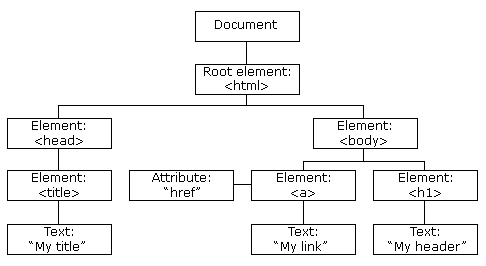
In the DOM:
Each HTML tag becomes a node
Nodes are connected like a family tree
<html>is the root<body>is a child<h1>and<p>are children of body
So HTML → becomes a DOM tree
CSS Parsing → CSSOM Creation
HTML alone gives structure.
CSS gives styling.
Example CSS:
h1 {
  color: red;
}
The browser parses CSS too.
It builds another tree-like structure called:
CSSOM (CSS Object Model)
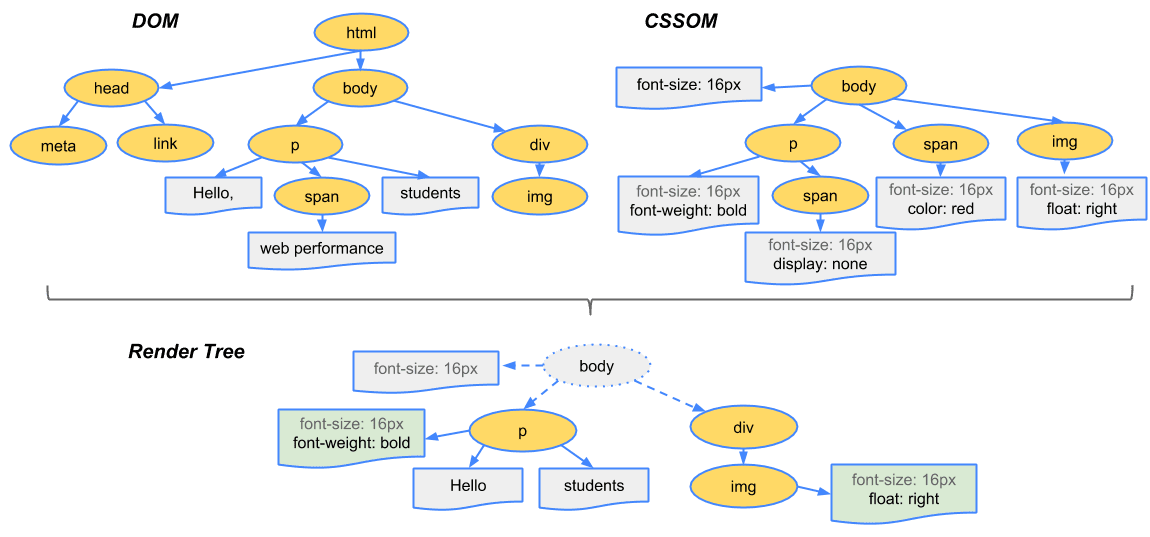
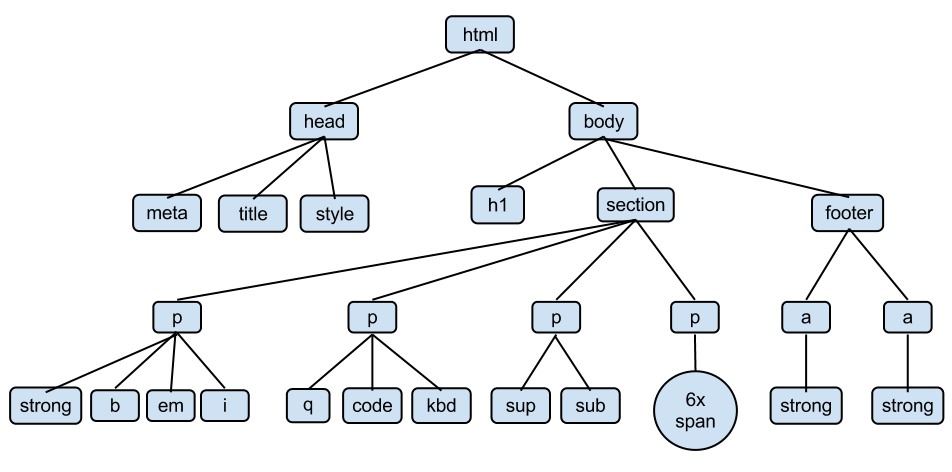
The CSSOM:
Contains all CSS rules
Matches selectors to elements
Knows which styles apply to which nodes
So now we have:
DOM → structure
CSSOM → styling rules
DOM + CSSOM → Render Tree
These two combine.
The browser creates something called the:
Render Tree

The render tree:
Contains only visible elements
Includes styling information
Is ready for layout calculation
Layout (Reflow)
Now the browser calculates:
Where each element goes
Width
Height
Position
This step is called:
Layout (also known as Reflow)
It figures out:
How wide is the paragraph?
Where does the image sit?
How much space does the heading take?
Painting
After layout, the browser paints.
Painting means:
Filling colors
Drawing text
Adding borders
Rendering shadows
Display (Compositing)
Finally:
Everything is combined into layers
Sent to the screen
Pixels appear
And you see the website.
The Full Flow (Big Picture)

Let’s summarize:
You type a URL
The browser sends a request.
The server sends HTML
HTML → parsed → DOM
CSS → parsed → CSSOM
DOM + CSSOM → Render Tree
Layout (reflow)
Paint
Pixels displayed
That’s the journey from text to visuals.
Important Mindset for Beginners
You do NOT need to memorize every term.
Instead, remember the flow:
Code → Structure → Styling → Layout → Paint → Screen
That mental model is enough to understand most frontend behaviour.
Why This Matters for Developers
Understanding browser internals helps you:
Write better HTML structure
Avoid unnecessary reflows
Understand performance issues
Debug layout problems
Appreciate why CSS works the way it does
When you know what the browser is doing, the frontend stops feeling magical — and starts feeling logical.
Final Reassurance
If this feels like a lot — that’s okay.
You don’t need to remember everything at once.
Even experienced developers revisit these concepts.
Just remember:
A browser is not “displaying HTML.”
It is constantly parsing, building trees, calculating layout, and painting pixels.
And every time you press Enter, that entire pipeline runs — in milliseconds.
That’s pretty amazing
Comments
Join the discussionNo comments yet. Be the first to comment.


